
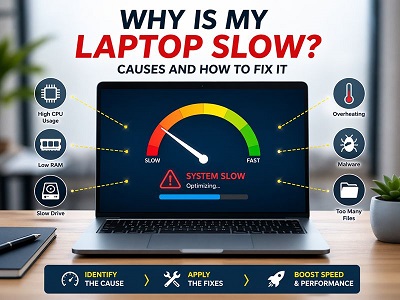
Laptop running slow? This is a deep technical breakdown of all real causes behind performance degradation in 2026, including system, hardware, thermal, and behavioral factors.
Introduction
Laptop performance depends on multiple layers: CPU processing, RAM availability, storage speed, thermal efficiency, and background system activity. When one or more of these layers becomes a bottleneck, the entire system feels slow- even if the hardware is technically still functional.
1. CPU Bottlenecks and Thermal Throttling
Cause
Modern CPUs automatically reduce performance when temperature exceeds safe limits. This is called thermal throttling.
Deeper Explanation
When heat increases, the CPU lowers clock speed and voltage to prevent damage. This can reduce performance by up to 70%, causing lag even during simple tasks.
Fix
- Clean internal fans and vents regularly
- Replace thermal paste every 2–3 years
- Use laptop on a solid, flat surface only
- Use a cooling pad for heavy workloads
Important: Never use your laptop on a bed, pillow, or soft surface. This blocks airflow, traps heat, and directly reduces performance.
2. Memory Pressure and RAM Saturation
Cause
When RAM is full, Windows uses slower virtual memory (pagefile on storage), causing system lag.
Technical Insight
This is known as memory paging, where active processes are swapped between RAM and disk, leading to noticeable slowdowns.
Fix
- Close unnecessary applications
- Upgrade to 16GB+ RAM for modern workloads
- Avoid heavy multitasking on low-memory systems
3. Storage Bottlenecks (HDD vs SSD)
Cause
HDDs are mechanical and slow. SSDs are much faster but can also slow down when nearly full.
Deeper Insight
SSDs lose performance when storage exceeds ~85%, due to increased write amplification and garbage collection overhead.
Fix
- Upgrade HDD to SSD (biggest performance boost)
- Keep at least 15–25% free space
- Avoid filling system drive completely
4. Background Processes and CPU Scheduling Load
Cause
Multiple background services compete for CPU time and system resources.
Fix
- Disable unnecessary startup apps
- Remove bloatware
- Use Task Manager to end heavy processes
5. Windows Bloat and System Accumulation
Cause
Over time, Windows accumulates cache files, updates, and background services that impact performance.
Fix
- Run Disk Cleanup or Storage Sense
- Restart system regularly
- Consider clean reinstall every few years for heavy users
6. Restart Behavior and System Memory Reset
Cause
Leaving a laptop running continuously keeps memory allocations and processes active indefinitely.
Fix
Restarting Benefits
Restarting applies system updates, clears RAM, and resets system processes that may be slowing performance.
Sleep vs Shutdown
Sleep mode preserves session state but does not fully reset system memory. Over long periods, this can reduce stability.
Best Practice
Restart every 1–3 days and fully shut down occasionally to reset system state.
7. Driver-Level Performance Issues
Cause
Outdated or corrupted drivers affect GPU, storage, and system performance.
Fix
- Update GPU drivers regularly
- Update chipset and storage drivers
- Use manufacturer drivers when possible
8. Power Limiting Settings
Cause
Battery saver mode reduces CPU performance to save energy.
Fix
- Switch to High Performance mode
- Plug in charger for full performance
9. Browser Overload
Cause
Modern browsers run each tab as a separate process, consuming RAM and CPU.
Fix
- Close unused tabs
- Reduce extensions
- Use tab sleeping features
10. Hardware Aging and Degradation
Cause
Over time, SSD cells degrade, batteries weaken, and thermal systems lose efficiency.
Fix
- Check SSD health (SMART status)
- Replace aging battery if needed
- Upgrade hardware when bottlenecks become permanent
11. How to Diagnose the Problem Using Task Manager
Cause
Many users apply random fixes without identifying the actual bottleneck. Task Manager allows real-time system diagnostics.
Fix (Professional Method)
Step 1: Open Performance Tab
Press Ctrl + Shift + Esc and open the Performance tab to view CPU, RAM, Disk, and GPU usage.
Step 2: Identify Bottleneck
- CPU 90–100% → Heavy apps or background processes
- RAM near full → Memory shortage or multitasking overload
- Disk at 100% → HDD bottleneck or system processes
- GPU high usage → Graphics-heavy workload or driver issue
Step 3: Process Analysis
Go to the Processes tab and sort by CPU, Memory, or Disk usage to identify the exact application causing slowdown.
Important: High usage is only a problem when it is sustained without legitimate workload explanation.
Pro Tip
If Disk usage remains at 100% on an HDD, upgrading to an SSD is usually the most effective long-term solution.
Final Conclusion
Laptop slowdown is rarely caused by a single issue. It is usually a combination of thermal limits, memory pressure, storage bottlenecks, and inefficient system behavior.
The most effective improvements are: SSD upgrade, RAM optimization, thermal management, and proper system maintenance habits.
Need Professional Diagnosis or Repair?
If your laptop is still slow after trying these fixes, the issue may be hardware or deeper system failure.
You can call us on +96170800556 or check our full expert guide for repairs, costs, and professional solutions in Lebanon: